DT Compatibility: ✅ This mod is compatible with Dawntrail.
Aetherwave Proximity Audio
Version: 1.1.0
Other by frostqueenmaya
;)
Contributor Information:
Audio broadcasting and recieving for FFXIV. Created by frostqueenmaya, Sef's Intrusive Thoughts, stankfang.
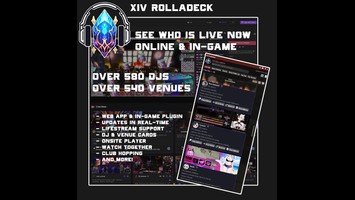
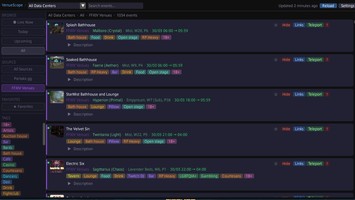
The Aetherwave Team officially recommends using XIV Rolladeck (by eggoless) alongside Aetherwave. Its a directory of all the DJs who are live and the venues that are open. Check it out here: https://xivrolladeck.com/
We also highly recommend you use Aetherwave with Twitch XIV for a complete experience! (We are not affilliated with Twitch XIV in any way) It can be found in the Official Dalamud Repo.
The Aetherwave Team officially recommends using XIV Rolladeck (by eggoless) alongside Aetherwave. Its a directory of all the DJs who are live and the venues that are open. Check it out here: https://xivrolladeck.com/
We also highly recommend you use Aetherwave with Twitch XIV for a complete experience! (We are not affilliated with Twitch XIV in any way) It can be found in the Official Dalamud Repo.
Author's Comments:
The program that fetches the stream is called Streamlink; it is supported by Twitch and counts the end listener (anyone who can hear the broadcast) as a view for Twitch's purposes. This status lasts for 20-30 minutes after joining the stream (or receiving its audio via proximity) and can be effectively refreshed by using the Twitch XIV plugin to interact with Twitch chat from in-game to create engagement that way. Since Streamlink uses your existing Twitch credentials automatically and Twitch XIV uses OAuth to chat with those credentials, engaging in Twitch chat from in-game will prevent the AFK status that removes the viewer.
--------------------------------------
While Aetherwave doesn't have the capability to engage with Twitch's Follows, Subscriptions, or Donation systems (we really didn't want to even tangentially touch anybody's money) we generally think of Aetherwave as another potential vector to get a DJ's music out to the audience. A person who was willing to tab out and open a browser to listen in the first place and would have followed or subscribed will have to do no less when using Aetherwave, but the ease of exposure can still serve as an entrance ramp to the DJ's community.
--------------------------------------
Installation:
1. Go to the "Experimental" tab.
2. Under Custom Plugin Repositories, enter the repository URL into the empty box at the bottom:
Repo Link: https://raw.githubusercontent.com/FrostQueenMaya/Aetherwave/refs/heads/main/Aetherwave.json
3. Click the "+" button.
4. Click the "Save and Close" button.
5. Find Aetherwave in the plugin list and click "Install v1.1.0"
## Player & Broadcast
### Global Stream Settings
Stream URL (Twitch/Soma) - Supports twitch.tv, youtube.com, kick.com, and mixcloud URLs and any .mp3 or .m3u8 format stream link.
Station Name - Applicable only to Broadcasting mode. Displays as the name of your 'station' above your character.
### Local Playback
Play Locally - Button will output the stream audio from the Stream URL field in Global Stream Settings. If Enable Proximity Audio is checked in the Configuration tab, encountering proximity audio will cut off local play. To prevent this, uncheck Enable Proximity Audio.
Stop Local - Does what it says on the tin and manually stops local audio play.
Local Volume - Volume slider for the user's heard audio. End users can use this slider to globally control volume for all proximity streams while proximity audio is active as well as for local play volume when using Play Locally.
Proximity Range - Slider controls distance at which proximity audio is heard for the end user. Lower values reduce the range at which audio is heard while larger values increase the range.
### Proximity Broadcast
Start Broadcasting - Creates a new entry in the Nearby Streams tab and starts broadcasting the stream in the Stream URL field to proximity audio. Please note that ad reels are not played, however the time during which they would play is filled by dead air. This may cause some Twitch.tv streams to take thirty seconds or more to produce audio for other users in proximity.
While broadcasting, the broadcasting user will -not- hear the broadcasted stream, this is the intended design.
## Nearby Streams
This tab shows a list of active stream broadcasts in the current zone as well as the total number of active broadcasts in the current zone. Users may use Tune In buttons for an available broadcast -- tuning in will disable proximity audio while tuned in to a specific 'station' and prevent distance from the source of the Tuned-In broadcast from affecting volume.
The character name of the broadcasting character will display beneath their respective Tune In button.
## Configuration
### Aetherwave Backend Settings
Enable Proximity Audio - This checkbox enables proximity audio to be heard by the end user when checked. Unchecking this will cut proximity audio and allow only audio from Local Play or a Tuned-In station.
### Broadcaster Identification
This field displays a randomly-generated user ID. This ensures that you are able to resume your broadcast in the event of a crash or disconnection. Changing this will cause active broadcasts to cease and their entries in the Nearby Streams tab to be purged.
Generate New Random ID (21-char) - Does what it says on the tin. In the extraordinarily unlikely event that another user in the same zone is broadcasting and happens to have the same random ID, changing this and restarting broadcasts should resolve the issue.
Current Proximity Status - Displays either ACTIVE (# stations nearby) or MUTED (Manual Listen Only). Reflects the status of the Enable Proximity Audio checkbox.
--------------------------------------
While Aetherwave doesn't have the capability to engage with Twitch's Follows, Subscriptions, or Donation systems (we really didn't want to even tangentially touch anybody's money) we generally think of Aetherwave as another potential vector to get a DJ's music out to the audience. A person who was willing to tab out and open a browser to listen in the first place and would have followed or subscribed will have to do no less when using Aetherwave, but the ease of exposure can still serve as an entrance ramp to the DJ's community.
--------------------------------------
Installation:
1. Go to the "Experimental" tab.
2. Under Custom Plugin Repositories, enter the repository URL into the empty box at the bottom:
Repo Link: https://raw.githubusercontent.com/FrostQueenMaya/Aetherwave/refs/heads/main/Aetherwave.json
3. Click the "+" button.
4. Click the "Save and Close" button.
5. Find Aetherwave in the plugin list and click "Install v1.1.0"
## Player & Broadcast
### Global Stream Settings
Stream URL (Twitch/Soma) - Supports twitch.tv, youtube.com, kick.com, and mixcloud URLs and any .mp3 or .m3u8 format stream link.
Station Name - Applicable only to Broadcasting mode. Displays as the name of your 'station' above your character.
### Local Playback
Play Locally - Button will output the stream audio from the Stream URL field in Global Stream Settings. If Enable Proximity Audio is checked in the Configuration tab, encountering proximity audio will cut off local play. To prevent this, uncheck Enable Proximity Audio.
Stop Local - Does what it says on the tin and manually stops local audio play.
Local Volume - Volume slider for the user's heard audio. End users can use this slider to globally control volume for all proximity streams while proximity audio is active as well as for local play volume when using Play Locally.
Proximity Range - Slider controls distance at which proximity audio is heard for the end user. Lower values reduce the range at which audio is heard while larger values increase the range.
### Proximity Broadcast
Start Broadcasting - Creates a new entry in the Nearby Streams tab and starts broadcasting the stream in the Stream URL field to proximity audio. Please note that ad reels are not played, however the time during which they would play is filled by dead air. This may cause some Twitch.tv streams to take thirty seconds or more to produce audio for other users in proximity.
While broadcasting, the broadcasting user will -not- hear the broadcasted stream, this is the intended design.
## Nearby Streams
This tab shows a list of active stream broadcasts in the current zone as well as the total number of active broadcasts in the current zone. Users may use Tune In buttons for an available broadcast -- tuning in will disable proximity audio while tuned in to a specific 'station' and prevent distance from the source of the Tuned-In broadcast from affecting volume.
The character name of the broadcasting character will display beneath their respective Tune In button.
## Configuration
### Aetherwave Backend Settings
Enable Proximity Audio - This checkbox enables proximity audio to be heard by the end user when checked. Unchecking this will cut proximity audio and allow only audio from Local Play or a Tuned-In station.
### Broadcaster Identification
This field displays a randomly-generated user ID. This ensures that you are able to resume your broadcast in the event of a crash or disconnection. Changing this will cause active broadcasts to cease and their entries in the Nearby Streams tab to be purged.
Generate New Random ID (21-char) - Does what it says on the tin. In the extraordinarily unlikely event that another user in the same zone is broadcasting and happens to have the same random ID, changing this and restarting broadcasts should resolve the issue.
Current Proximity Status - Displays either ACTIVE (# stations nearby) or MUTED (Manual Listen Only). Reflects the status of the Enable Proximity Audio checkbox.
Primary File or Link:
Github : [ via github.com ]
Other Files and Links:
- Other : [ via raw.githubusercontent.com ]
- Other : [ via xivrolladeck.com ]
History:
 Loading Mod History...

Similar Mods